01+
Leftovers
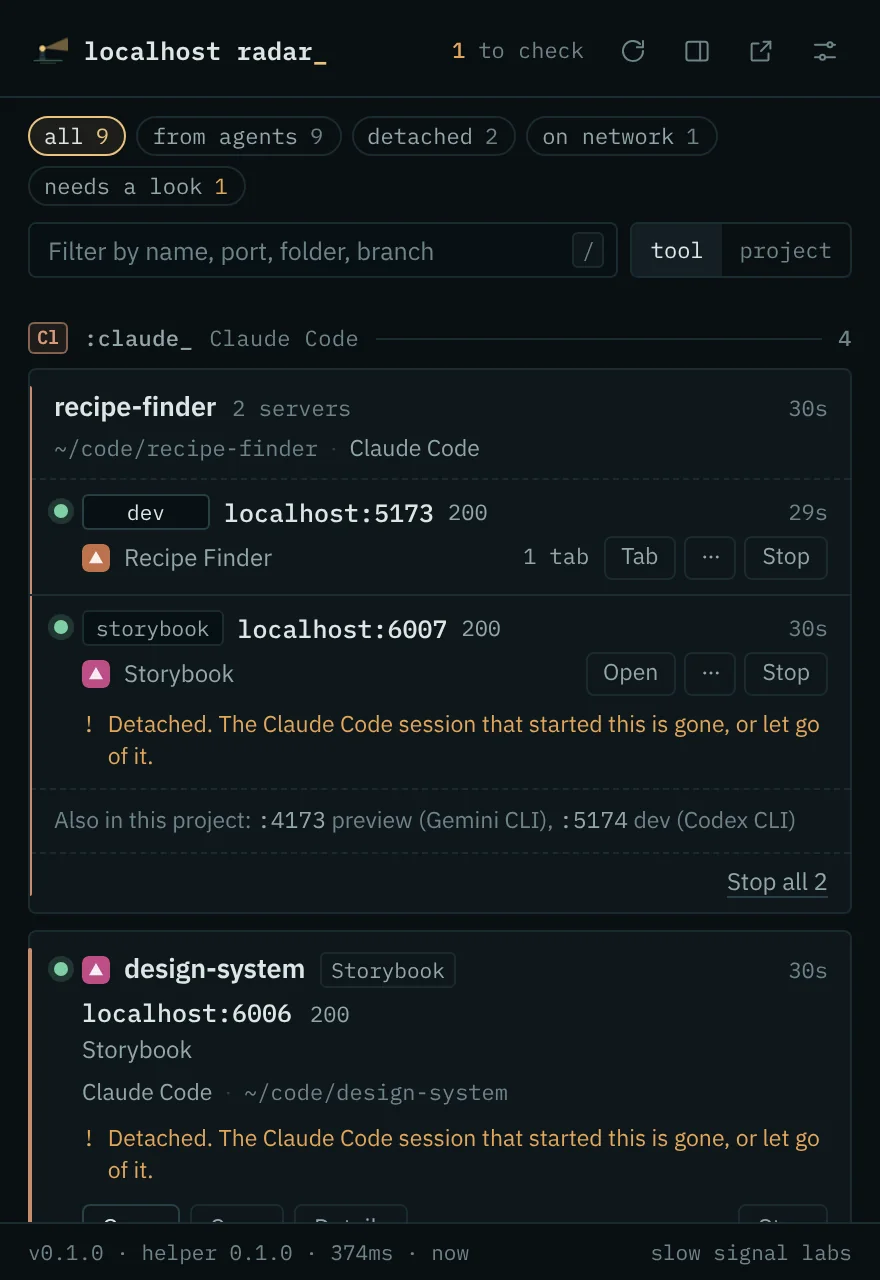
A server whose agent session has ended, or let go of it, is marked detached.
See every server your AI coding tools left running on this computer, who started it, and whether it still answers.
:what it shows
Your agents start servers. Claude Code runs a dev server, Codex starts another in a worktree, Antigravity opens a preview. An hour later port 3000 is taken and nobody remembers by whom. Radar lists them all, grouped by the tool that started each one.
:one project, every port
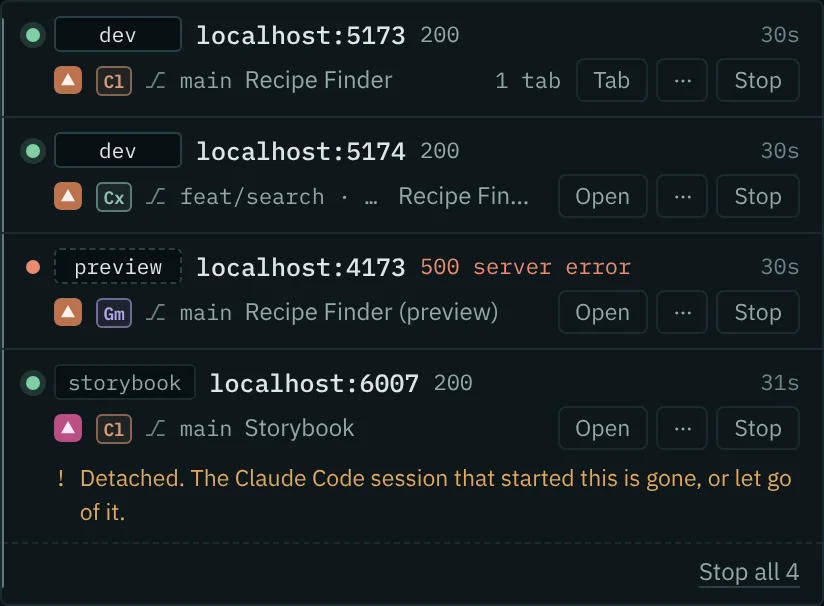
Agents rarely start just one server. Often there's a dev server, a preview of the build, Storybook, the API, and a second copy on another branch in a worktree, each on its own port and sometimes from a different agent.
Radar groups them by the git repository they belong to, so worktrees and monorepo packages land in one place, and gives each one a role. It shows why it chose that role (for example, "its command runs vite preview"). You can stop the whole project at once, after seeing the list of what will stop.
:what it notices
A server whose agent session has ended, or let go of it, is marked detached.
Bound to 0.0.0.0, so other devices on your network can reach it.
Two programs on one port, IPv4 and IPv6. localhost may reach either one.
Servers that accept a connection but don't answer, or answer with a 5xx.
6000, 6665–6669 and others that Chrome refuses to open, said before you try.
Tabs still pointing at a port where nothing listens. Close them in one go.
:in charge
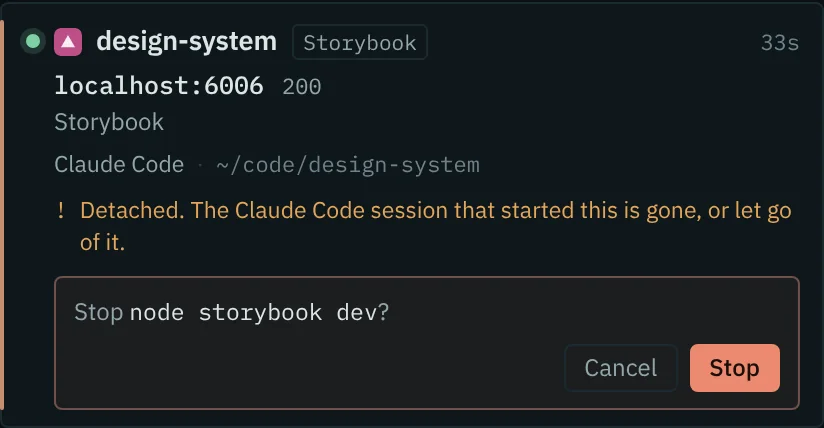
Before anything ends, Radar names it: "npm run dev and the 3 processes it started", plus any other port that would go with it. It climbs through dev runners, watchers and reloaders, so nothing restarts itself behind your back.
Then it checks that the process id still belongs to the program you saw, sends the normal shutdown signal, and forces it only if you ask. It won't touch your shell, terminal, editor, agent, Docker or your own browser.
You can also rename, pin or hide a server, and correct who started it. Those choices stay in your browser.
:who it knows
Radar walks up from each server's process. The nearest AI tool above it counts as the one that started it. If a server was detached and has no parent left, Radar looks for markers the tool leaves in its children's environment.
| tool | recognised by | note |
|---|---|---|
| ClClaude Code | the claude process; CLAUDE_CODE_CHILD_SESSION | Claude's editor extensions also set CLAUDECODE in their terminals, so on its own that counts as a hint. |
| ClClaude app | its app bundle | |
| CxCodex CLI | the codex process; CODEX_THREAD_ID, CODEX_SANDBOX | |
| CxChatGPT / Codex app | its app bundle | |
| AgAntigravity | the app and agy | |
| AgAntigravity IDE | its app bundle | Its terminal can also be you typing, so Radar calls this likely, not certain. The same goes for Cursor and Windsurf. |
| ··and more | by process name and environment marker | Gemini CLI, Cursor, Copilot CLI, OpenCode, Amp, Aider, Qwen Code, Goose, Crush, Kiro, Cline, Factory Droid, Kimi Code, Mistral Vibe, Grok Build, Junie, Auggie, Qoder, and the Windsurf, Trae and CodeBuddy editors |
:how it works
A browser can't see which program owns a port, so Radar comes with a helper: a readable Python script that your browser starts only when Radar asks. Only this extension may start it. It needs no account and no network, and it stores nothing.
Without the helper, Radar still finds servers answering on common ports. It just can't say who started them, or stop them.
:install
From the Chrome Web Store once it's through review. Works in any Chromium browser, version 120 or later.
It opens by itself after you add Radar. The installer is generated there for your copy of Radar and contains the helper as source you can read first.
macOS and Linux:
bash ~/Downloads/install-localhost-radar.shWindows, in PowerShell:
powershell -ExecutionPolicy Bypass -File "$env:USERPROFILE\Downloads\install-localhost-radar.ps1"Needs Python 3.8 or newer. The setup page turns green when the helper answers. --uninstall removes it again.
:privacy
Radar talks to its helper and to servers on localhost, and nothing else. Your names, pins and a day of history stay in your browser. Read the privacy policy.